

Marketing & Content Collaboration Automation
Image editing with AI: features, tools and step-by-step guide
From single images to large image libraries
Image editing with AI works like this: you describe or mark what you want to change, and an AI model takes care of the pixel work. Typical tasks include removing backgrounds, cutting out products, erasing distracting objects, extending an image beyond its original frame, applying a different style or upscaling small images. What used to take an hour in professional software now often takes seconds, and many tools offer a free basic version.
For a single image, that problem is solved. It is a different story when a brand team is facing 500 product images that need to be cut out, adapted to three channel formats and stored with the correct usage rights by Friday. At that point, the tool matters far less than the process behind it.
What can AI image editing do?
At its core, AI image editing covers five features: removing backgrounds and cutting out subjects, removing or adding objects, extending images, applying a new style and upscaling. Almost every tool offers some of them. The differences lie in how well a tool handles tricky areas, how much control you have over the result and how many images you can edit at once.
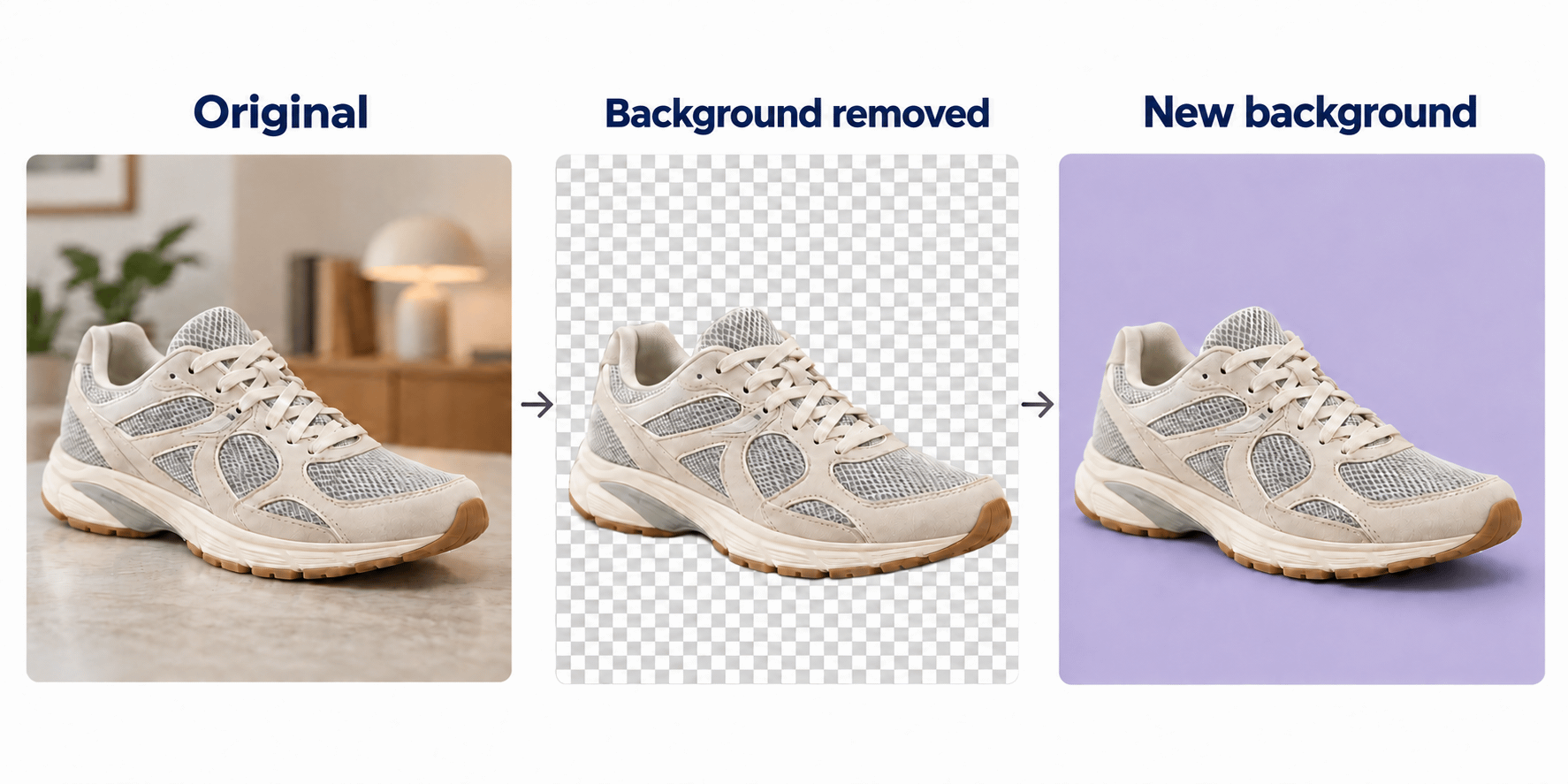
1. Remove backgrounds and cut out subjects
The AI detects the main subject and separates it from the background. The result is a cut-out image with a transparent background, or with a new colour, surface or scene behind it. This is the most widely used feature, especially for e-commerce product images. Hair, fur, glass and fine edges remain difficult.
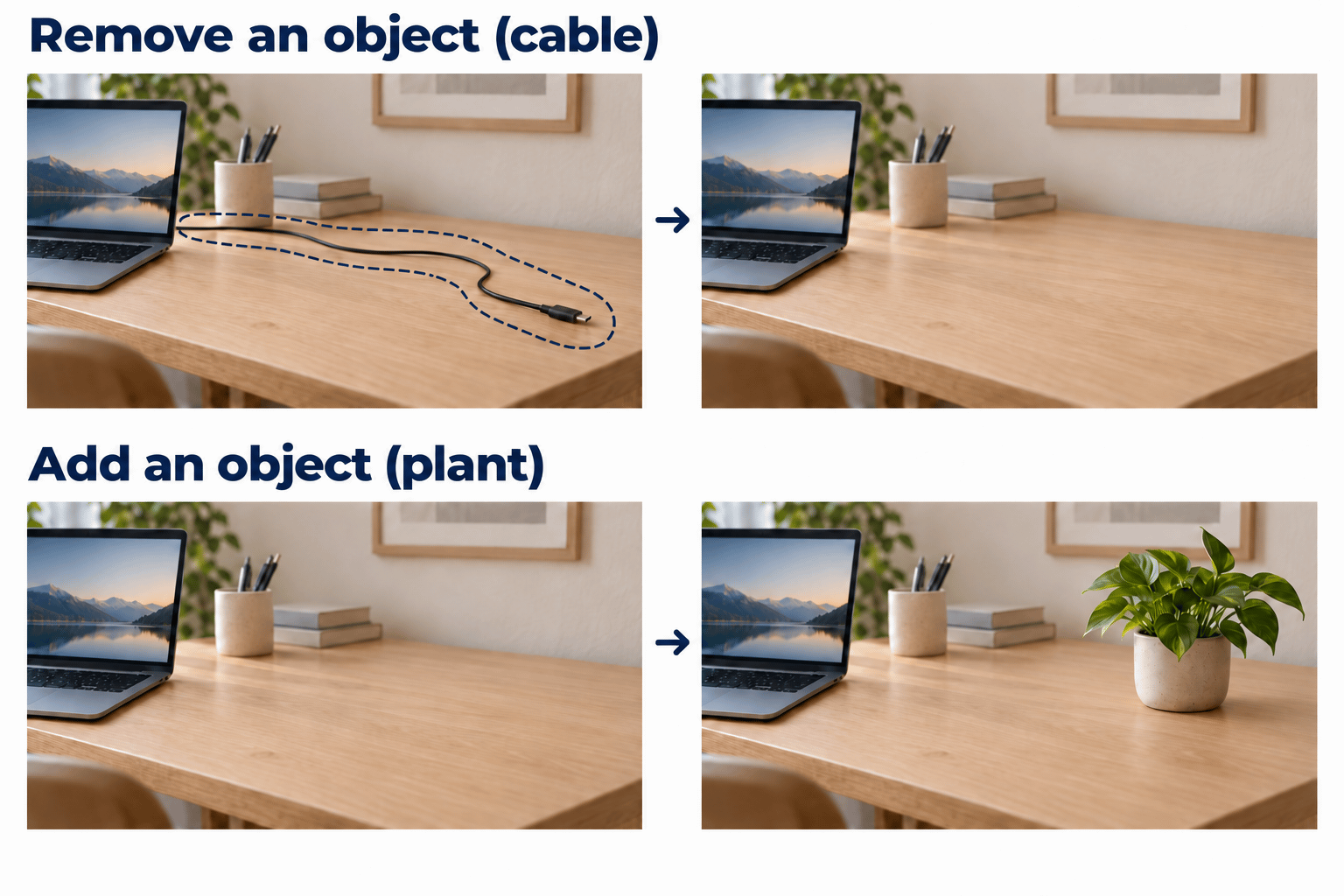
2. Remove or add objects
You select an area, such as a cable, a passer-by or a logo, and the AI fills it in to match its surroundings. You can also add something with a text prompt: a plant on the table, snow on the roof. The technical terms for this are inpainting or generative fill.
3. Extend images
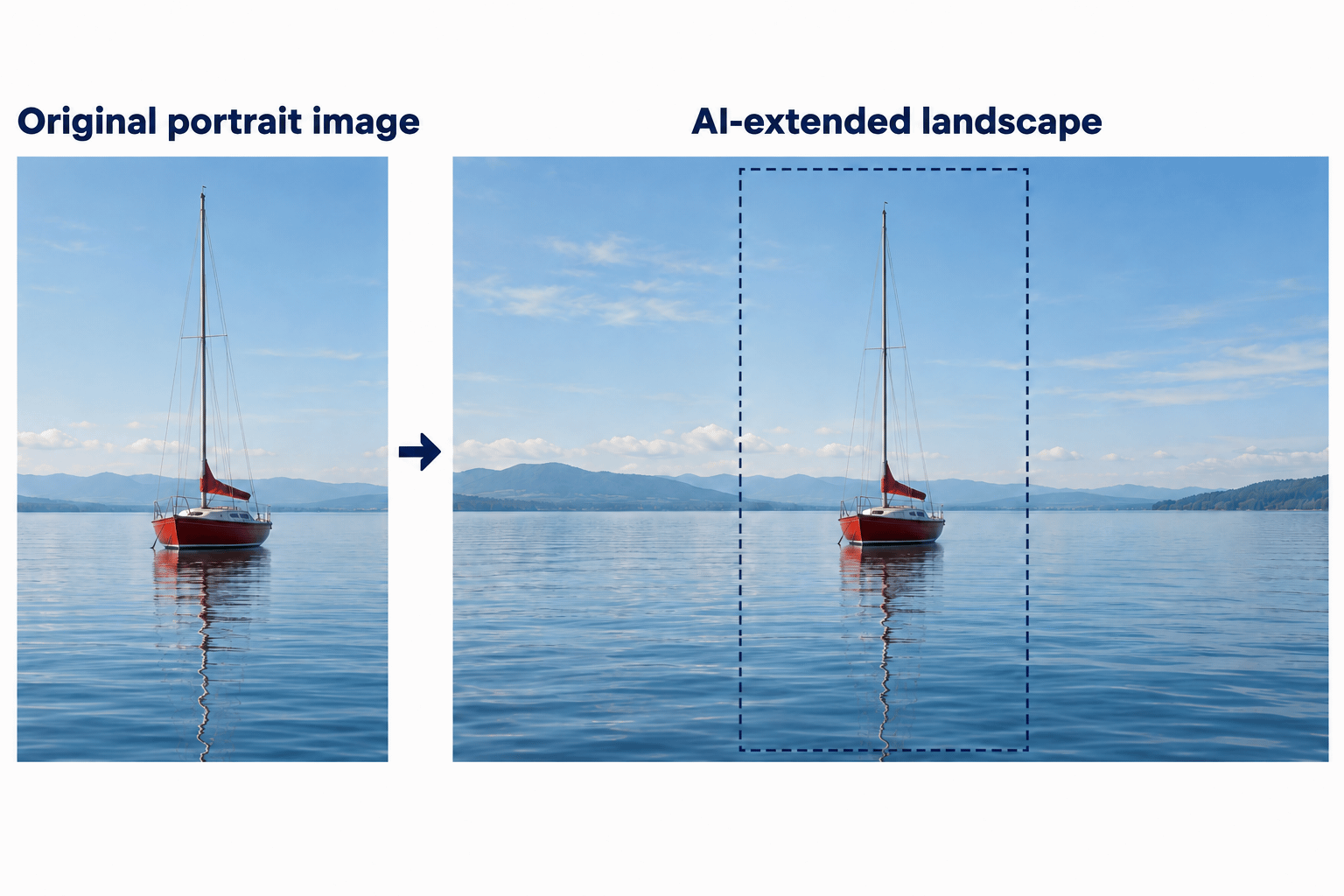
The AI keeps painting beyond the edges of the image, a technique also known as outpainting. This turns a portrait image into a landscape banner without cropping the subject. It works well with calm backgrounds such as sky, walls or water. With text, patterns and architecture, mistakes are easier to spot.
4. Transfer styles
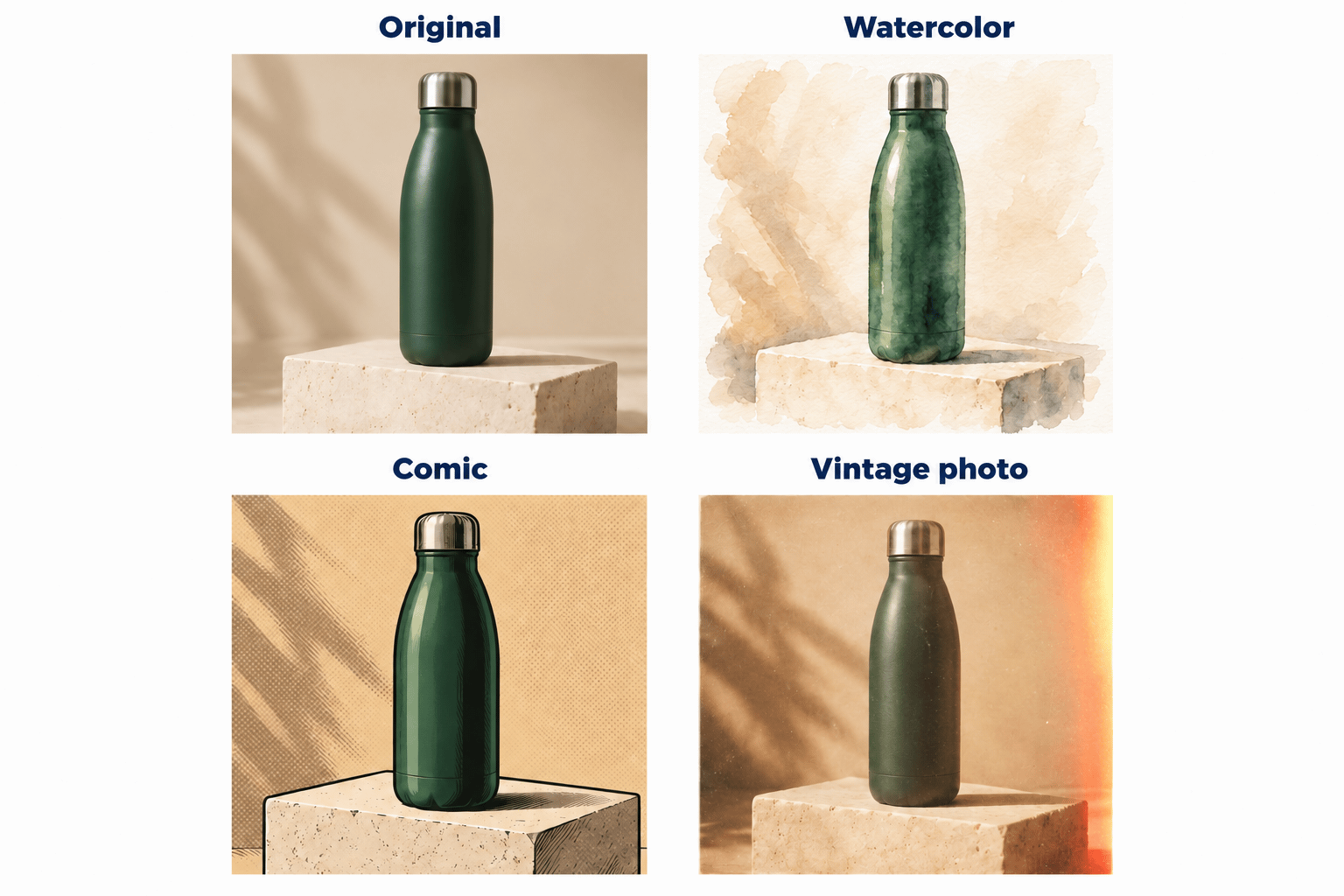
Style transfer gives an image a new look: watercolour, comic, vintage photo or a particular lighting mood. That is useful for social media and mood boards. For brand imagery it is risky, because the AI may also change details of the product along the way.
5. Upscale images
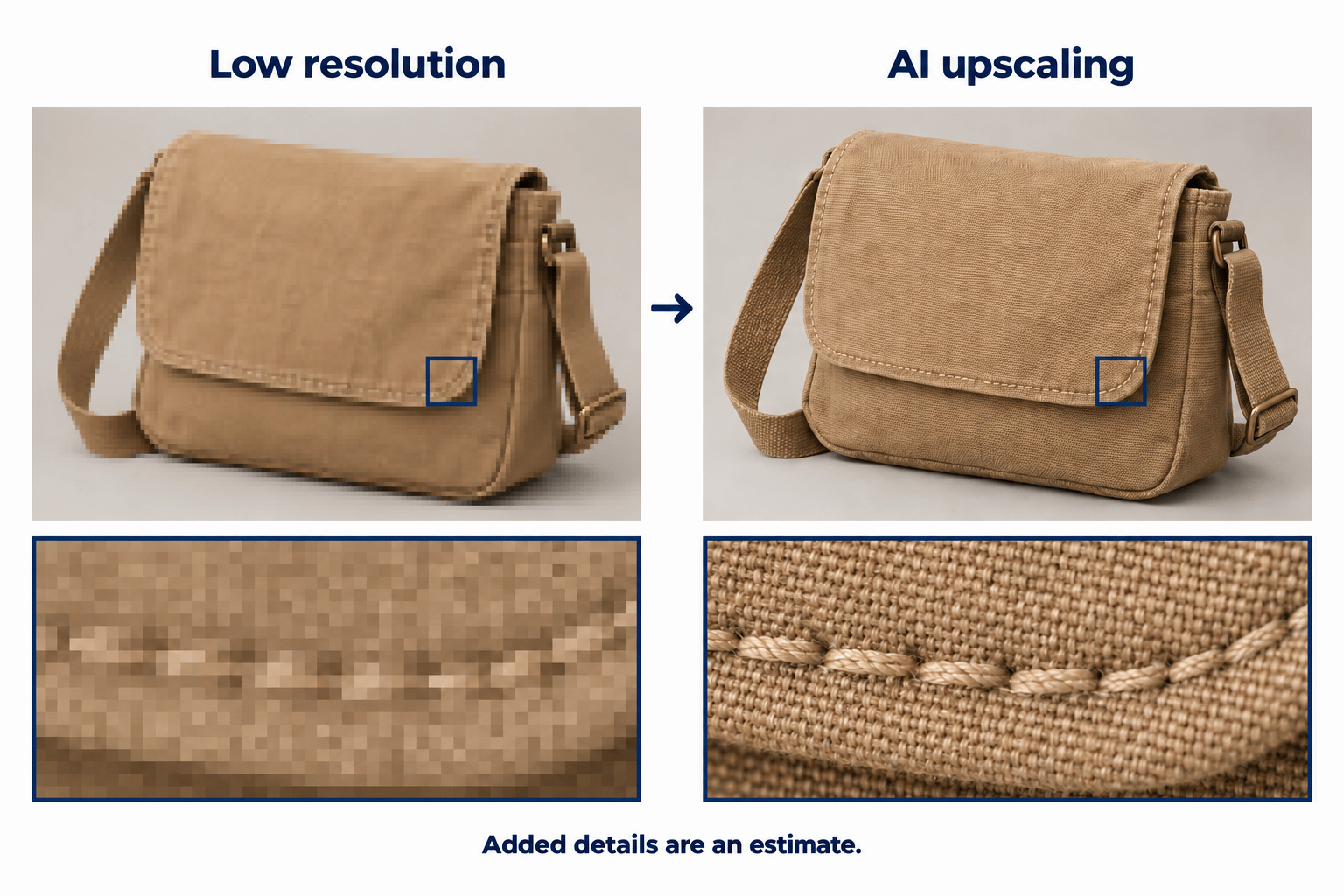
With upscaling, the AI increases the resolution of a small image and adds details that were not in the original. This can rescue old or heavily compressed images for print and large displays. However, the added details are an estimate. On product photos, a seam, a piece of lettering or a texture may end up looking different from the real product.
Which tools are best for image editing with AI?
For individual images, the well-known design and photo apps will do the job: Canva for quick graphics, Adobe Firefly for precise retouching, Pixlr as an affordable browser-based option, ChatGPT for edits through conversation and Google Photos for images on your smartphone. You can try all five for free, but not every feature is included in the free plan. The table shows the strengths and weaknesses of each tool.
Canva is a good fit when the edited image goes straight into a graphic, a post or a presentation. Background removal, object removal, image extension and moving elements all sit in the same editor as your layout. The background remover, however, is only available with Canva Pro, so you cannot use it on the free plan. Fine control over edges is also more limited than in professional software.
Adobe Firefly offers the widest range of retouching tools: generative fill, object removal, image extension, background removal or generation, and upscaling. According to Adobe, its own Firefly models are trained on licensed content from Adobe Stock and on public domain content. Results carry Content Credentials that disclose the use of AI. Only a few generations per day are free. Partner models from other providers use up credits on the paid plans.
Pixlr runs in the browser and covers background removal (including for multiple images), object removal, image extension, new backgrounds from a text prompt and upscaling. The free version shows ads and includes only a few AI credits. Its paid plans are among the cheapest in this comparison.
ChatGPT edits images through conversation: upload an image, describe the change, ask for refinements. Since the update to ChatGPT Images 2.5 in September 2026, OpenAI says it follows edit requests more precisely and keeps subjects more consistent across several rounds. Its strength is that you need no tool knowledge at all to get started. Its weakness: the model often regenerates the entire image instead of only changing the selected area. So check details such as lettering, logos and product shape after every round. The number of image edits is limited on the free plan.
Google Photos brings Magic Editor, Magic Eraser and Unblur to supported smartphones and Chromebooks for free. That makes it ideal for holiday snaps and quick fixes on the go. Google is rolling out prompt-based editing gradually rather than in all countries at once. For brand imagery, everything that comes after the edit is missing: storage, approval and rights.
Guide 1: Remove a background for free with Adobe Firefly
With Adobe Firefly, you can remove a background for free in three steps: upload your image on Firefly’s “Remove background” page, wait a moment while Firefly cuts out the subject, and download the result. The whole process takes less than a minute, requires no software installation and only needs a free Adobe account.
What you need: a free Adobe account, a browser and an image in JPEG, PNG or WEBP format of no more than 50 MB.
Step 1: Upload your image on the Firefly page
Open Adobe Firefly’s Remove background page and click the upload button. Alternatively, drag and drop your image into the upload area.
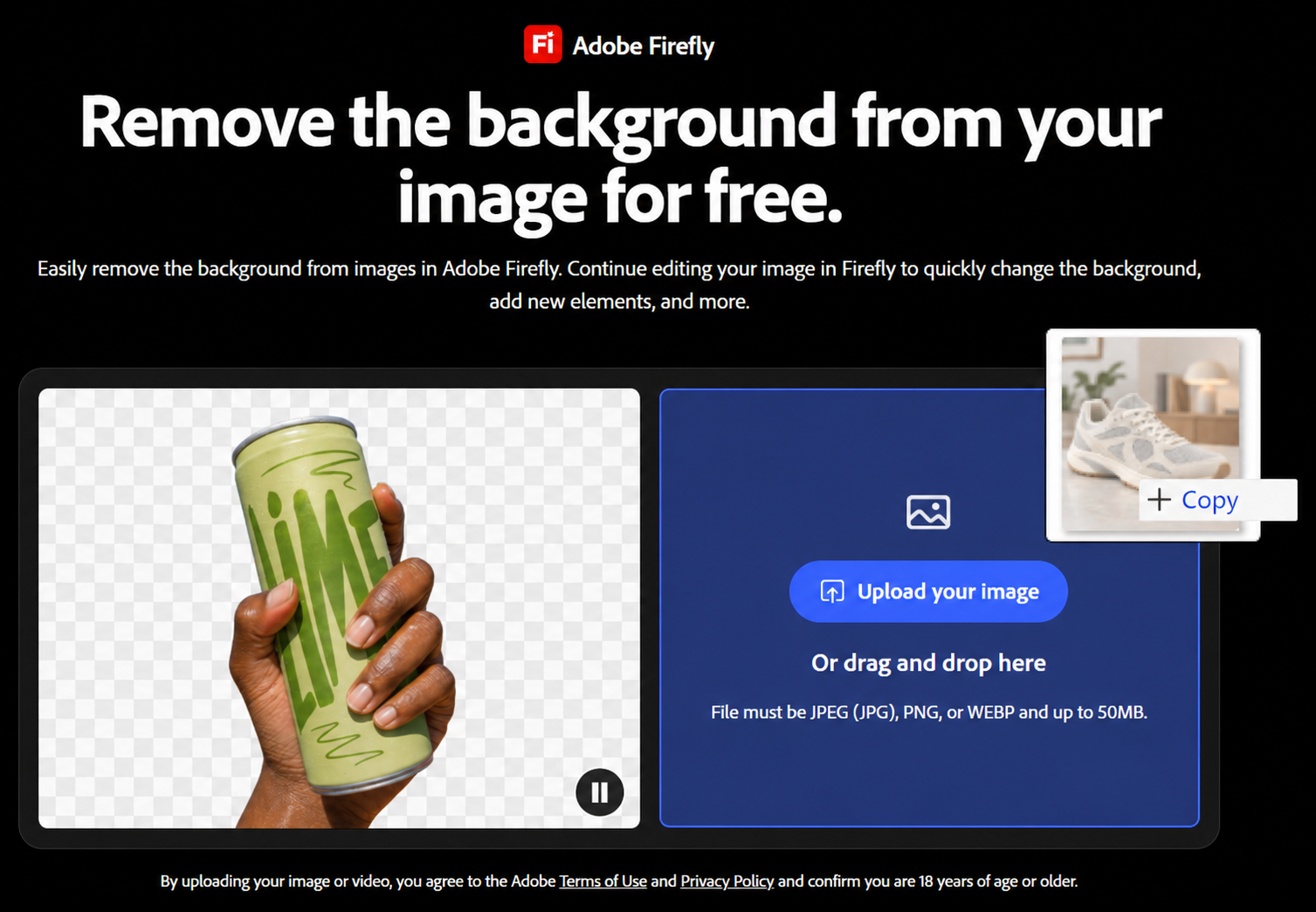
Note: By uploading an image, you agree to Adobe’s terms of use and privacy policy. So do not upload unreleased product photos or images you have not been cleared to use.
Step 2: Let Firefly cut out the subject
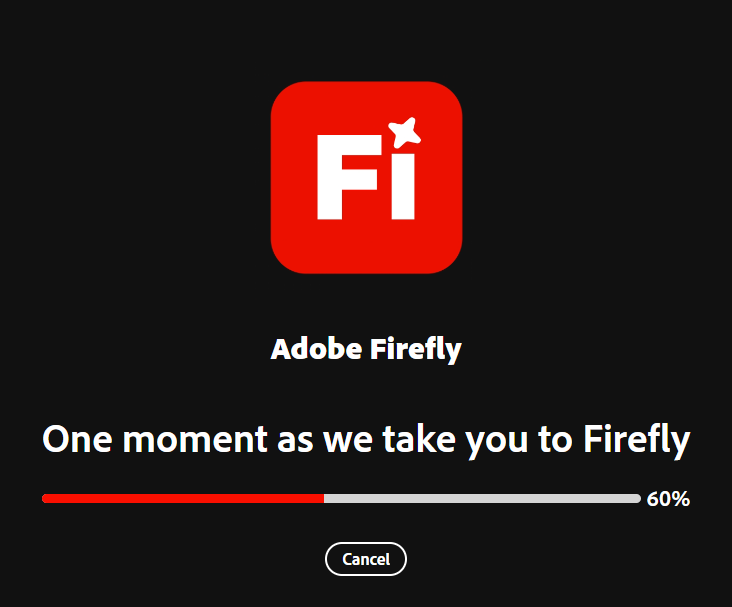
Once the upload is complete, Adobe Firefly opens automatically and removes the background. You do not need to click anything else. The cut-out image is usually ready within a few seconds.
Note: The more clearly the subject stands out from the background, the cleaner the result. In poor lighting or with strong shadows, gaps or dark edges may remain.
Step 3: Check the result and download it
Firefly shows the cut-out subject on a transparent background. Zoom in to check the edges, then click “Download” in the top right corner. You get a PNG file with a transparent background that you can drop into any layout.
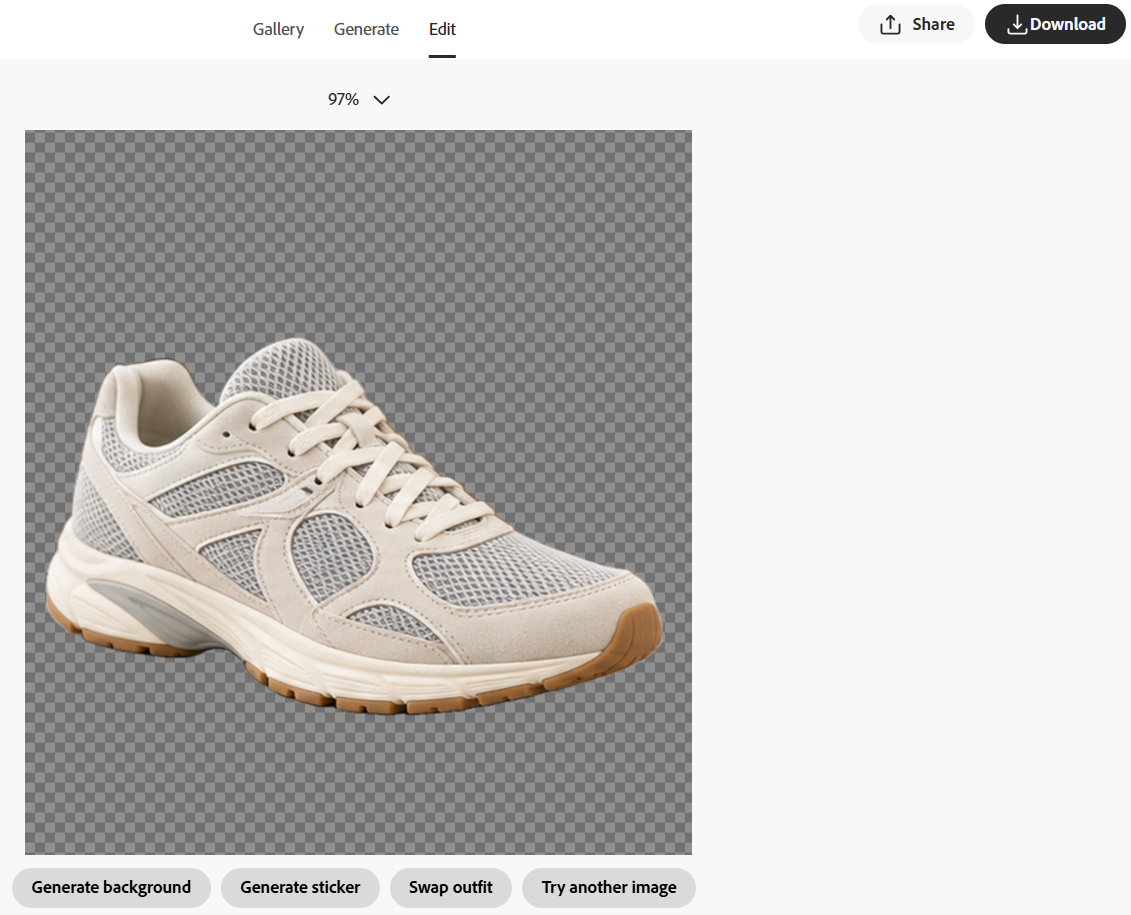
Below the image, Firefly offers further edits, such as generating a new background. These generative features count towards your limited free allowance.
For one image, this is perfect. For 500 images, it means 500 uploads, 500 downloads and 500 files that end up somewhere.
What changes when you edit 500 images instead of one?
With large numbers of images, the work shifts from editing to managing. Every edited file needs a link to its original, the right usage rights, an approval status and a fixed storage location. Without these, you end up with copies of unknown origin, and nobody knows which version is the current one.
Three things typically get lost along the way.
The link to the original. A cut-out product image is a new asset. If it ends up as a loose file in a downloads folder, nobody will later know which photo it came from. When the product changes, the team cannot find the derived variants.
The rights. The usage rights of the source image also apply to the edited version. If the licence for a photo expires, it also expires for every cut-out and every variant made from it. If the original and the edits are stored separately, this information is lost.
Control over the brand. Give a large organisation an open prompt field and every market will create its own version of the brand. AI image editing therefore needs guardrails: which images may be edited, with which features, and who approves the result.
An image editing tool cannot solve this. For that, the AI has to work where the images already live.
Guide 2: Image editing with AI in Sharedien
In Sharedien, a digital asset management solution for enterprises, you edit images directly in your asset library instead of downloading and re-uploading them. The AI Image Editor removes backgrounds, generates and changes images from prompts, upscales and blurs areas, including for many images at once. For recurring tasks such as background removal, an automated workflow in the Integration Hub does the work for you. The result stays linked to the original.
What you need: access to Sharedien with the AI Image Editor enabled and editing permissions for the assets. For automated background removal, an administrator sets up the workflow once.
Step 1: Select your images
In Sharedien, select a single image or several images for batch editing. Because the editing happens inside the system, the images keep their metadata, rights and product relationships.
Step 2: Open the AI Image Editor and choose a feature
Launch the AI Image Editor and choose what should happen to the images. The editor offers these features:
- Remove background: The AI automatically cuts out the subject, for example for product images in your online shop.
- Generate images and change them with prompts: A text description is all it takes to create new backgrounds, product images or entire scenes. You can also change existing images with a prompt.
- Upscale and enhance: Older or small images get a higher resolution and better quality.
- Blur and mask: Selected areas are blurred, for example to make people unrecognisable or to draw attention to the product. This can be configured and automated.
- Structured prompts and meta prompts: Fixed specifications make sure generated images match your brand. These are the guardrails that an open prompt field lacks.
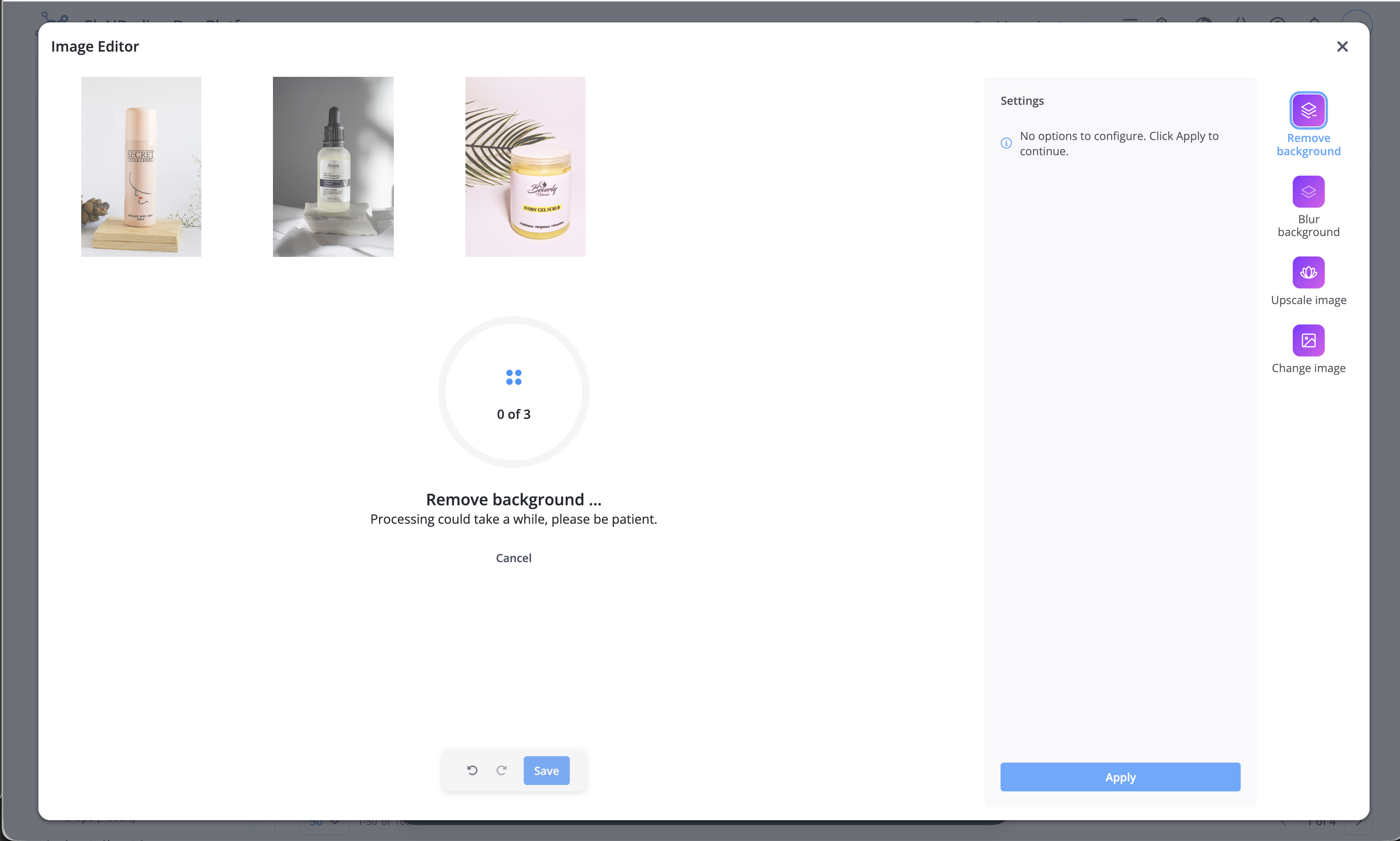
You can apply each of these features to a single image or, with batch editing, to many images at the same time. The editor is also integrated into Workspaces, where teams work on briefings and campaigns.
Step 3: Save the result as a new version
Save the edited image as a new version of the asset. This keeps it linked to the original, so you can always trace where a variant came from and which rights apply to it. If you edit or generate images in a workspace, they can go straight into approval there.
Step 4: Automate recurring background removal
For tasks that always follow the same pattern, the Integration Hub provides a ready-made workflow step. It sends images to a specialised background removal service and saves the result back: as a new version, as a new asset or as a derived image. A new asset is linked to the original via a relation. The workflow is triggered by an event or a click.
You can define whether the image is cropped with a margin, which background colour it gets and which format it is saved in. A typical use case: every new product image automatically gets a cut-out version on a white background, without anyone touching a file.
Note: The workflow needs its own access to the background removal service. Plan the setup together with your administrators.
Step 5: Deliver the right formats
You do not need to create any additional files for your channel formats. The Sharedien CDN crops and resizes images on request, controlled by parameters in the image URL. This is not AI, but it saves you exporting ten sizes per image.
You decide which AI does the work. AI features in Sharedien are connected through an open architecture. You can use the models operated by Sharedien or connect your own providers, and you decide which features are active.
Why AI image editing works better in your asset library
At scale, AI image editing works best where images are already stored with their context. That way, every edited version inherits rights, product relationships and approval status from the original instead of starting over as a loose file.
Image models are changing fast, and today’s tool may well be outdated in a year. What remains is the question of where the result ends up. A variant that is linked to its original can be found, checked, updated and withdrawn by a team. A variant sitting in a downloads folder cannot.
What are the limits of AI image editing?
AI image editing has three limits: it produces artefacts in tricky areas, it invents details when upscaling and extending images, and it raises legal questions around copyright, personality rights and labelling. None of these is a reason to avoid AI. But all three are a reason to check every result before publishing it.
Artefacts. Hair, hands, lettering, reflections and transparent materials are the classic problem areas. A cut-out wine glass easily loses its rim, and an extended image may gain a row of windows that does not match the building. Look at every result at full size.
Quality and product accuracy. Upscaling and generative fill add pixels that did not exist before. For mood images, that does not matter. For product images, a deviation in colour, material or labelling can lead to complaints, because the image then shows something the customer will not receive.
Copyright and usage rights. Ask yourself three questions before publishing an image edited with AI. Are you allowed to edit the source image? Do the tool’s terms permit commercial use of the result? Are there recognisable people in it who need to have given their consent? In Germany, the prevailing legal view is that purely AI-generated parts of an image are not protected by copyright, because the law requires a human creation. On top of that, the EU AI Act sets out transparency obligations for AI-generated and AI-manipulated content. This section is not legal advice. Clarify specific cases with your legal department.
Data protection. If you upload an unreleased product photo to a free online tool, you are passing it on to an external provider. Check beforehand whether and how the provider stores uploaded images or uses them for training.
Next step
If your challenge is not the single image but the sheer volume, it is worth looking at how AI image editing, background removal workflows and rights management work together in a DAM system like Sharedien. Request your free demo now.
To find out how AI automatically tags images and makes them easier to find, read our ebook on AI tagging and automated metadata.
Note: The images showing the different AI image editing features are for illustration purposes only and were generated with AI.
FAQ: Common questions about image editing with AI
Can I edit images with AI for free?
Yes. Canva, Adobe Firefly, Pixlr, ChatGPT and Google Photos all have free tiers with AI features. The number of uses is limited, and some features are reserved for paid plans, such as Canva’s background remover. For the occasional single image, the free version is usually enough.
Which AI can remove the background from an image?
Almost every current image editing tool removes backgrounds with AI, including Canva, Adobe Firefly and Pixlr. You can do it for free with Adobe Firefly or Adobe Express, for example, while in Canva the feature is part of Canva Pro. For individual images, one click is enough. For large numbers of images, an automated process that creates cut-outs directly in your asset library and links them to the original is worthwhile, as in Sharedien.
How do I edit many images at once with AI?
Use batch editing or an automated workflow instead of a tool designed for single images. What matters is that the results do not end up as loose files but stay linked to the original, its rights and its approval status.
Can I use images edited with AI for commercial purposes?
That depends on the rights to the source image and on the tool’s terms of use. Check both before publishing, as well as the consent of any people shown. If in doubt, your legal department decides, not the tool.
Does upscaling an image with AI reduce its quality?
An upscaled image becomes sharper, but not necessarily more faithful to the original. The AI adds details based on estimates. For product images, compare colours, materials and lettering with the original after upscaling.
About the author
As Senior Marketing Manager, Tina leads content strategy at Sharedien. With over 7 years of experience in B2B SaaS marketing, she develops editorial plans, campaigns, and formats that make complex topics clear and impactful. LinkedIn

More
articles
Keep reading and take a look at our latest blog articles.




OCR technology: text-in-image search and automated tagging



PIM vs DAM: what's the difference, and do you need both?